 Launcher Launcher
 |
|
|
|
Tree |
|
A Tree is a collections of Notes/Shortcuts/Favorites.
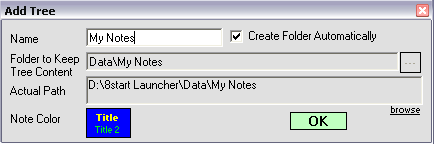
The Tree must be attached to a Tree Type Category. A Tree which is attached to a Tree Type Category can be changed to another tree easily.
With Tree Type Categories, it is possible to have an unlimited number of trees in the 8start Launcher.
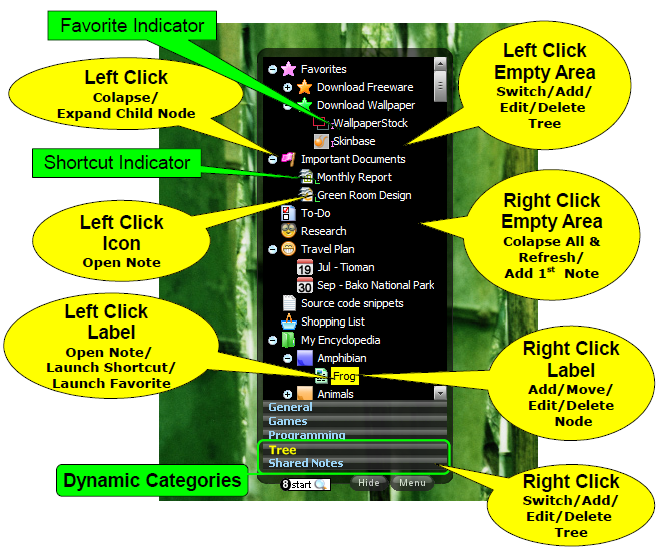
To maintain a compact appearance for the 8start Launcher tree, there is no add/delete/edit/move icon shown in the Tree window. By using a mouse click on icons, it is faster and easier to manipulate Trees and Notes.
Add New Note/Shortcut/Favorite
add 1st note in a tree
- Right click on the empty area of 8start launcher Tree windows
add subsequent node in a tree
- Right click on a node in the tree, and select 'New Note' or 'New Shortcut' or 'New Favorite', then select the location (Above/Child/Below) for the new node added
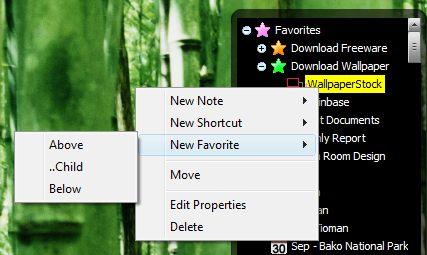

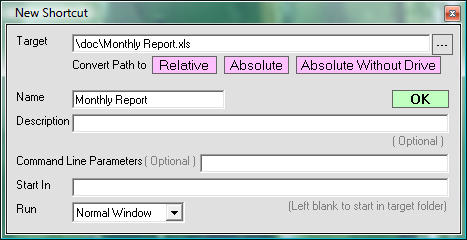
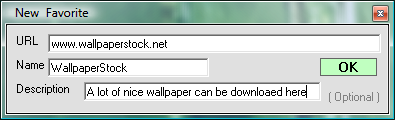
- You can change icon of a 'Note' by clicking on the icon, icon of 'Shortcut' and 'Favorite' is generated automatically, so you can't change it.
* The description inputed will be shown in tree window, when mouse hovers over the note label.
Mulitplate Nodes in a Tree
Colapse/Refresh content in a tree
- Right Click empty area in the tree
Move node in a tree
- Right click on a Node and select 'Move'
Edit node properties
- Right click on a Node and select 'Edit Properties'
Delete node
- Right click on a Node and select 'Delete'
Change Tree Opacity
- Click 'Menu' then 'Tree Opacity'
* In some old computer, display of notes label in Tree become slow if opacity changed to the value below 100%. Set Opacity back to 100% to solve this problem.
|

 , then select 'Add Dynamic Category ( for Tree Notes/Shortcuts/Favorites )' to add New Tree Type Category